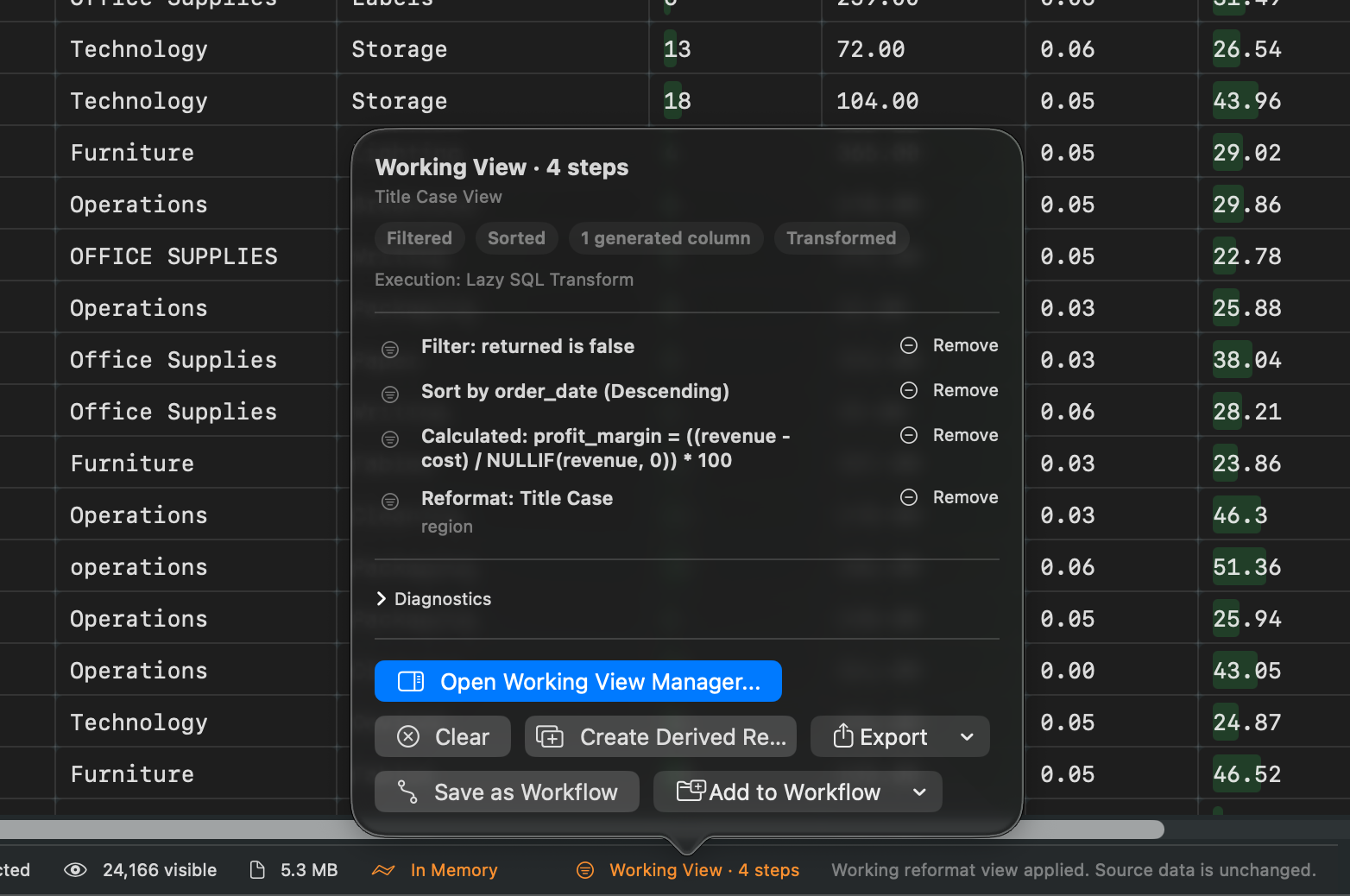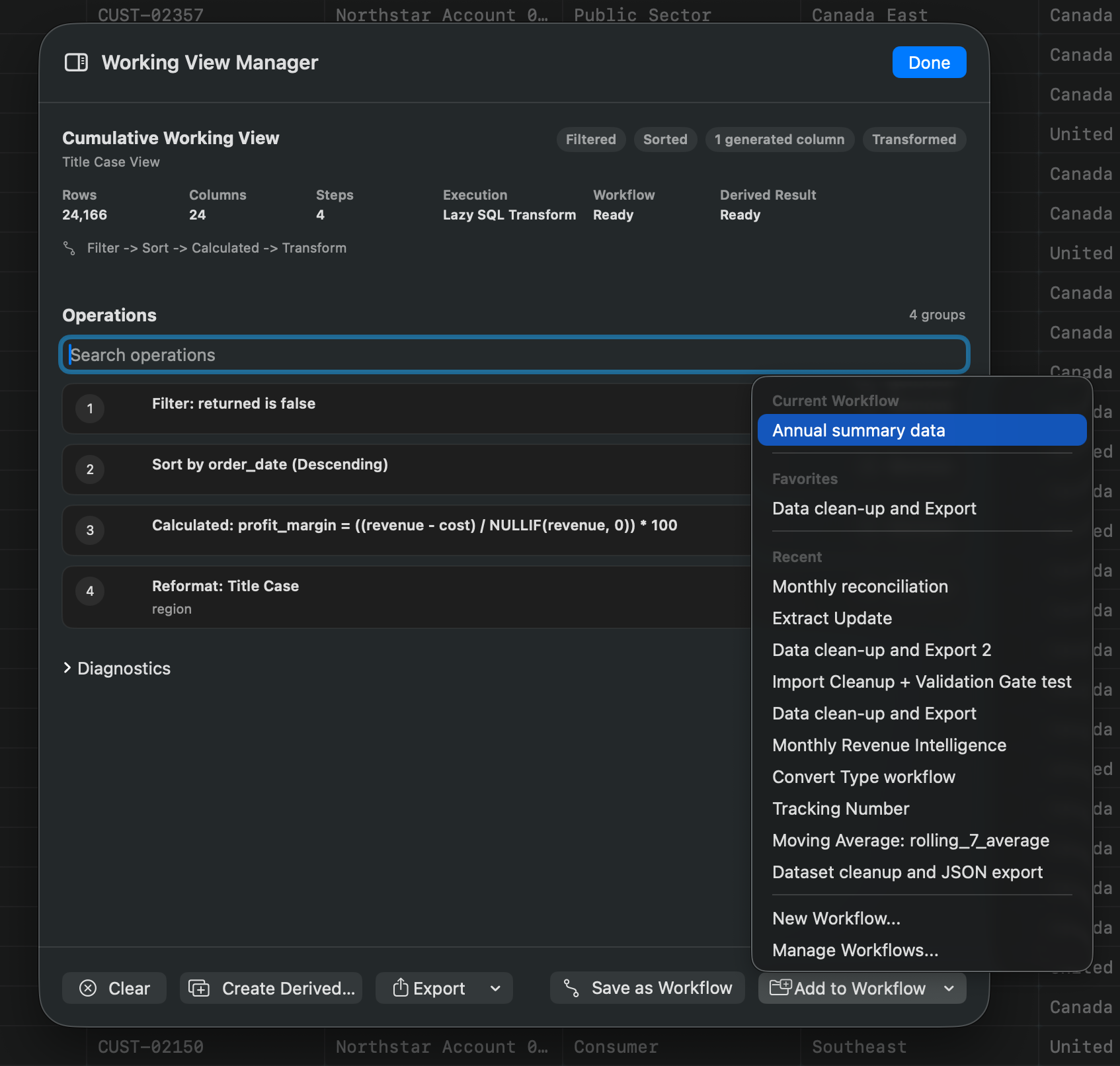
What Working Views Are
A Working View is a non-destructive view of your dataset. You can filter, sort, clean, analyze, and add compatible steps while the source data remains unchanged.
Rowpath shows Working Views as a stack of steps. A single-step stack is named after that step. Multiple steps appear as a cumulative Working View.
When To Use A Working View
Use a Working View when you want to:
- Explore data before committing to an export or derived result.
- Chain cleanup steps such as filters, duplicate analysis, calculated columns, and formatting.
- Keep the original file unchanged.
- Save a useful sequence of steps as a Workflow.
- Continue working from an intermediate result.
How To Use A Working View
- Open a dataset.
- Open a feature inspector such as Filter, Sort, Duplicate Analysis, Calculated Column, or SQL.
- Choose Working View when that feature offers it.
- Apply the operation.
- Add more compatible steps as needed.
You can remove steps, undo and redo Working View changes, clear the stack, or save compatible steps as a workflow.
Saving A Working View As A Workflow
Rowpath can turn compatible Working View steps into a workflow. The save sheet is labeled Save Working View as Workflow or Add Working View to Workflow. Rowpath shows how many steps are selected and warns when a step depends on another generated column or is not compatible with workflow export.
Restoring A Working View
Rowpath can detect a saved Working View from a previous session. When available, the restore banner offers:
- Restore Working View
- Open Original Dataset
- Forget Saved View
If the file or schema has changed enough that the saved view no longer matches, Rowpath reports that the saved Working View is no longer compatible with the file.
Notes
- Column layout changes such as renaming, hiding, and reordering columns are applied immediately because they do not require scanning or rewriting the dataset.
- Shape-changing operations may need to create a derived result instead of staying as a Working View.
- SQL can become a Working View only when it preserves the current table shape, such as filtering, sorting, or limiting rows from
current_data. - Use Create Derived Result when you want a separate result to keep or export.
Related pages:
Screenshots