
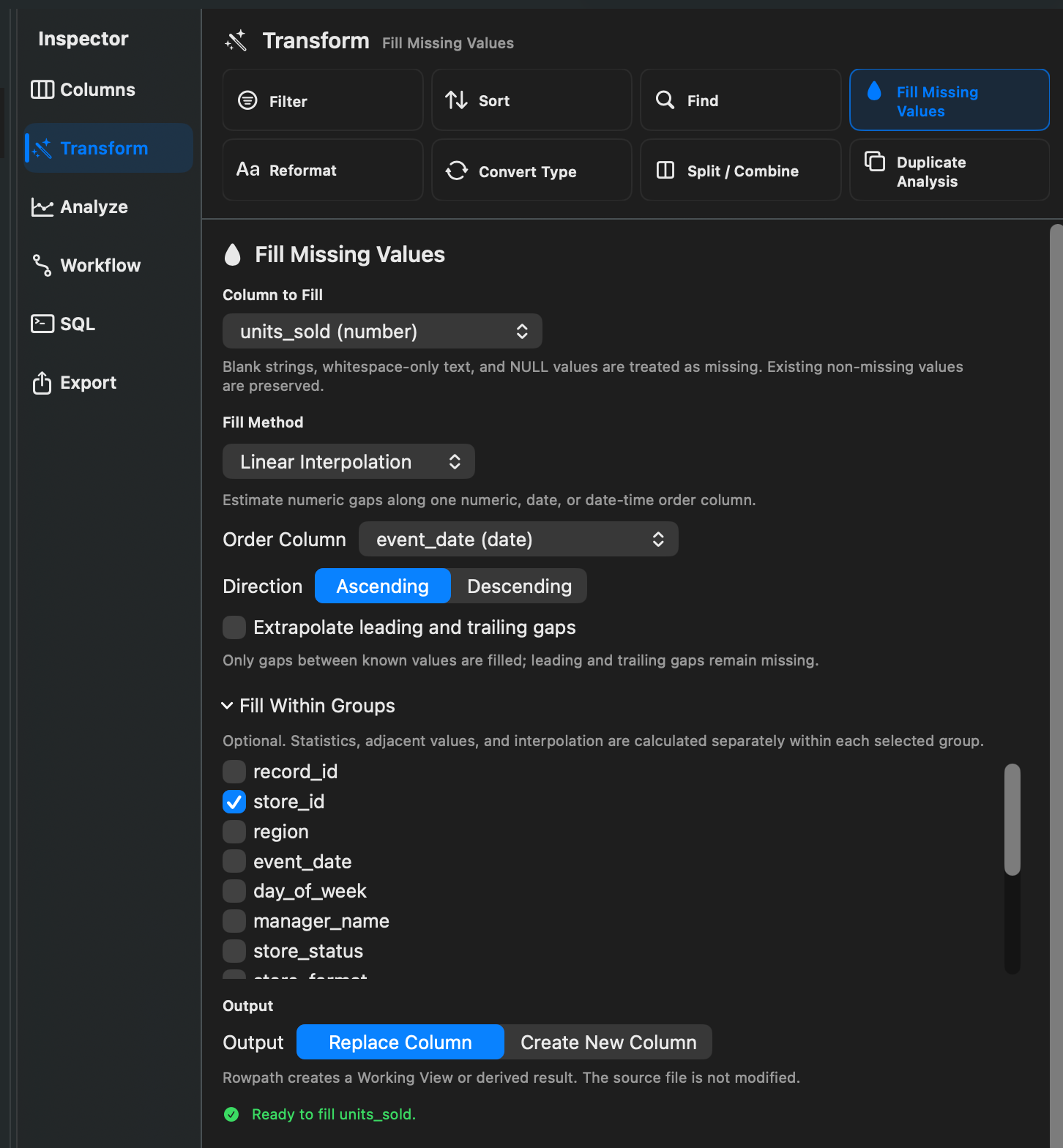
The Fill Missing Values inspector helps you replace blank, whitespace-only, and null values without changing values that are already present. You can apply one replacement to every missing cell, carry nearby values forward or backward, calculate a replacement from the dataset, or interpolate gaps in numeric data.
How To Open It
- Open a dataset and select Analyze in the Inspector.
- Open Missing Values and scan the dataset or a selected column.
- Select a column and choose Fill Missing Values.
The selected column automatically appears in the Fill Missing Values inspector. You can also open Fill Missing Values from Rowpath's transformation commands and choose a column manually.
Column To Fill
Choose the column containing the missing values. Rowpath treats null values, empty strings, and text containing only whitespace as missing. Existing non-missing values are preserved.
Fill Method
Choose how Rowpath should fill missing cells:
- Constant Value: Uses the same replacement for every missing cell. For example, use
Unknown, zero, or a default category. - Previous Value: Carries the last known value forward. Choose an order column and whether the order runs ascending or descending.
- Next Value: Carries the next known value backward. Choose an order column and direction.
- Mean: Replaces missing numeric values with the arithmetic average.
- Median: Replaces missing numeric values with the median. This can be useful when a few unusually high or low values would distort the mean.
- Most Frequent Value: Uses the value that occurs most often.
- Linear Interpolation: Estimates missing numeric values between known points. It requires a numeric column to fill and a numeric, date, or date-time order column.
Extrapolate Leading And Trailing Gaps
For Linear Interpolation, Extrapolate leading and trailing gaps controls what happens at the edges of a column. When it is off, Rowpath fills only gaps between known values. Missing values before the first known value or after the last known value remain missing. When it is on, Rowpath extends the calculated trend to fill those leading and trailing gaps.
Fill Within Groups
Grouping is optional. When you select one or more group columns, Rowpath performs the calculation independently within each group.
For example, when filling missing sales values with the median for each region, values from one region do not affect another. Previous Value and Next Value also stay within their respective groups.
Output
Choose how to keep the filled values:
- Replace Column: Replaces missing values in the selected column while retaining its position.
- Create New Column: Keeps the original column and adds a filled version. Rowpath suggests a name ending in
_filled, which you can change.
Rowpath creates a Working View or derived result; it does not modify the original source file.
Preview And Apply
- Preview: Shows the first 20 resulting rows. Although only 20 rows are displayed, Rowpath uses the full active dataset for the calculation.
- Working View: Applies the fill as a reversible Working View so you can continue exploring your data.
- Create Derived Result: Creates a durable filled result with lineage.
- Workflow menu: Adds the configured fill operation to an existing workflow or saves it as a new workflow.
Example: Fill Missing Revenue Values By Region
- Choose Revenue as the column to fill.
- Select Median as the fill method.
- Expand Fill Within Groups and select Region.
- Choose Create New Column and name it
revenue_filled. - Select Preview to verify the result.
- Choose Working View or Create Derived Result.